
Forge Visual Clarity: Master Python Chart Design
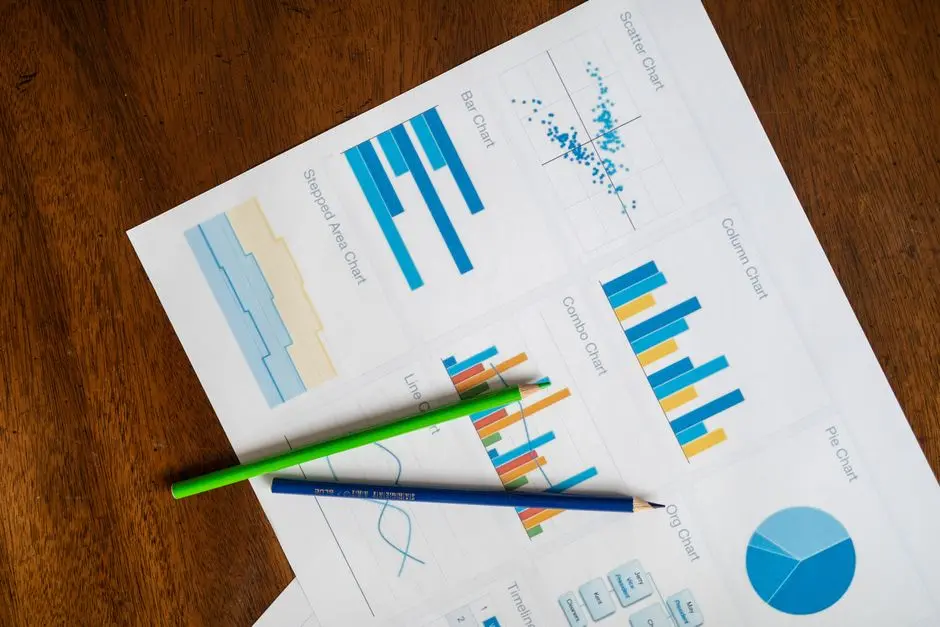
In the expansive domain of software development, where data reigns supreme, the ability to communicate complex insights with absolute clarity transforms raw information into actionable intelligence. Poorly designed charts obscure truths, foster misinterpretations, and ultimately erode trust in data-driven decisions. Conversely, meticulously crafted visualizations act as potent catalysts, accelerating comprehension and driving strategic innovation.
This resource engineers a definitive framework for mastering the art and science of visual communication in Python, specifically within the realm of Data Science. We navigate through foundational principles, surgical design techniques, and advanced strategies to ensure every chart you forge is not merely a display of data, but a clear, compelling narrative. Prepare to activate a new level of proficiency where your visualizations resonate with precision and impact. We decode the critical best practices that empower you to analyze, visualize, and model data with Python effectively, ensuring your insights cut through noise. We conquer the challenge of turning data deluge into digestible, impactful visual stories. Are you ready to elevate your data storytelling to an electrifying standard?
Activate Foundational Principles: Architecting Intent
We commence our exploration by anchoring every visualization project to its core intent. Before a single line of Python code is committed, we rigorously define the audience, the specific message to convey, and the ultimate purpose of the chart. Ignoring this preparatory phase invites ambiguity and undermines the entire visual communication effort. Consider: who is consuming this information? What critical question must this chart answer? What action do we compel them to take?
A foundational principle dictates that every visual element must serve a purpose, contributing directly to the clarity of the message. We eliminate 'chart junk' – any visual element that does not convey information or distracts from the data. This means scrutinizing extraneous grid lines, superfluous decorations, and redundant text. Our objective is surgical precision: maximum information transfer with minimal cognitive load. By distilling the visual to its essence, we amplify its impact. For instance, comparing time-series data demands a line chart, while comparing magnitudes across distinct categories necessitates a bar chart. Distributions call for histograms or box plots. The appropriate chart type is not a matter of aesthetic preference, but a strategic decision based on the data type and the insight we aim to highlight. Forging the correct visual architecture from the outset ensures robust interpretability and undeniable authority.
Furthermore, we engineer a comprehensive understanding of pre-attentive attributes – those visual properties that our brains process unconsciously and instantaneously. Color, size, shape, and orientation can guide the viewer's eye and highlight crucial data points without explicit instruction. Leveraging these attributes judiciously allows us to direct attention, emphasize contrasts, and reinforce patterns, effectively pre-processing the information for our audience. This strategic deployment of visual cues transforms a mere data display into a guided analytical experience, ensuring the salient insights are immediately perceivable and unequivocally clear.
# Import necessary libraries
import matplotlib.pyplot as plt
import seaborn as sns
import numpy as np

# Set a consistent style for better aesthetics
sns.set_theme(style="whitegrid")

# 1. Understand Your Audience and Purpose
# Example: Comparing sales performance over time for different product lines.
# Data represents monthly sales for Product A and Product B over a year.
months = ['Jan', 'Feb', 'Mar', 'Apr', 'May', 'Jun', 'Jul', 'Aug', 'Sep', 'Oct', 'Nov', 'Dec']
sales_a = np.random.randint(500, 1200, 12)
sales_b = np.random.randint(600, 1300, 12)

# 2. Select the Right Chart Type
# For time-series comparison, a line chart is ideal.
# For comparing discrete categories, a bar chart might be better.
# For showing distribution, a histogram or box plot.

plt.figure(figsize=(10, 6))
plt.plot(months, sales_a, marker='o', label='Product A', color='skyblue')
plt.plot(months, sales_b, marker='o', label='Product B', color='salmon')

# 3. Implement Basic Clarity Elements (will be enhanced in subsequent sections)
plt.title('Monthly Sales Performance Comparison', fontsize=16)
plt.xlabel('Month', fontsize=12)
plt.ylabel('Sales Volume', fontsize=12)
plt.legend(fontsize=10)
plt.grid(True, linestyle='--', alpha=0.6)

# 4. Remove 'Chart Junk' - here's an example of what NOT to do
# plt.tick_params(axis='x', rotation=45) # Often useful, but avoid unnecessary rotations if not needed
# plt.figure(facecolor='lightgray') # Unnecessary background unless for specific branding

# Display the plot
plt.tight_layout()
plt.show()

# Example of choosing a different chart type for different data/purpose
# If we wanted to see the distribution of sales values:
plt.figure(figsize=(8, 5))
sns.histplot(sales_a, kde=True, color='skyblue', label='Product A', alpha=0.7)
sns.histplot(sales_b, kde=True, color='salmon', label='Product B', alpha=0.7)
plt.title('Distribution of Monthly Sales', fontsize=16)
plt.xlabel('Sales Volume', fontsize=12)
plt.ylabel('Frequency', fontsize=12)
plt.legend(fontsize=10)
plt.tight_layout()
plt.show()
Engineer Clarity: Mastering Design Elements for Precision
With foundational intent established, we transition to the surgical engineering of individual design elements. Each component of a chart—titles, labels, axes, colors, and legends—must contribute to an unequivocal message. A compelling title is not merely descriptive; it encapsulates the chart's primary insight, acting as an executive summary. For example, instead of "Sales Data," engineer a title like "Q4 Sales Surge Driven by Software Segment," immediately guiding the viewer's interpretation. Labels on both axes must be clear, concise, and provide units, eliminating guesswork and ensuring quantitative precision. Avoid overlapping labels through strategic rotation or alternative display methods.
Axis scaling demands meticulous attention. For bar charts, we enforce the critical rule: the y-axis must commence at zero. Violating this distorts perceptions of magnitude, leading to misleading conclusions. For line charts, while starting at zero is not always mandatory, the chosen scale must accurately represent the data's true variation without exaggeration or compression. We activate intelligent tick placement, ensuring sufficient granularity without visual clutter. Strategic use of color is a potent tool, yet often misused. We decode color theory, distinguishing between sequential palettes for ordered data (e.g., heatmaps), diverging palettes for data with a critical midpoint (e.g., positive/negative values), and qualitative palettes for distinct categories. Crucially, we ensure color choices are accessible, especially for individuals with color vision deficiencies. Tools exist to validate palette choices against common forms of color blindness, a non-negotiable step in our design process. Avoid default, often jarring, rainbow palettes which can introduce artificial hierarchies.
Legends are vital when multiple data series are present, but their placement and clarity are paramount. Position them strategically to avoid obstructing data, and ensure their labels are intuitive and consistent with the chart's overall narrative. When space is constrained, direct annotation of data points can often supersede the need for a separate legend. We integrate data labels judiciously, only when they enhance the immediate understanding of a specific value, rather than cluttering the entire plot. Finally, grid lines are employed sparingly and subtly, serving as faint guides rather than prominent features, and are often restricted to a single axis (e.g., horizontal grid for readability of y-axis values).
# Import necessary libraries
import matplotlib.pyplot as plt
import seaborn as sns
import numpy as np

# Set a consistent style for better aesthetics and readability
sns.set_theme(style="whitegrid")
plt.rcParams.update({'font.size': 10, 'axes.labelsize': 12, 'axes.titlesize': 14, 'xtick.labelsize': 10, 'ytick.labelsize': 10})

# Generate example data for product categories sales
categories = ['Electronics', 'Clothing', 'Home Goods', 'Books', 'Software']
sales = np.array([85000, 62000, 45000, 30000, 78000])

# Define a custom color palette for better differentiation and accessibility
# Using a colorblind-friendly palette from seaborn
palette = sns.color_palette("viridis", len(categories))

plt.figure(figsize=(10, 7))

# Create a bar chart for categorical comparison
bars = plt.bar(categories, sales, color=palette)

# 1. Optimize Titles and Labels
plt.title('Quarterly Sales Performance by Product Category', weight='bold', pad=20)
plt.xlabel('Product Category')
plt.ylabel('Total Sales Volume (USD)')

# 2. Refine Axis Scaling and Ticks
# Ensure y-axis starts at 0 for accurate magnitude comparison in bar charts
plt.ylim(0, max(sales) * 1.1)
plt.yticks(rotation=0)

# Format y-axis ticks to be more readable (e.g., in thousands or with currency)
from matplotlib.ticker import FuncFormatter
def millions_formatter(x, pos):
    return f'${x:,.0f}' # Format as currency with comma for thousands

formatter = FuncFormatter(millions_formatter)
plt.gca().yaxis.set_major_formatter(formatter)

# 3. Strategic Use of Color
# Annotate bars with their values directly for quick reference
for bar in bars:
    yval = bar.get_height()
    plt.text(bar.get_x() + bar.get_width()/2, yval + 1000, f'${yval:,.0f}', ha='center', va='bottom', fontsize=9)

# 4. Integrate Legends Effectively (if multiple series are present)
# For a single series like this, direct labels or annotations might be preferred over a legend if space is tight.
# If multiple categories were plotted as separate series, a legend would be crucial.

# 5. Minimize Gridlines – Keep them subtle or remove if not critical
plt.grid(axis='y', linestyle='--', alpha=0.7)
plt.grid(axis='x', visible=False) # X-axis grid is often unnecessary for bar charts

# Remove chart border for a cleaner look
sns.despine(left=True, bottom=True)

plt.tight_layout()
plt.show()

# Example of poor color choice (using default rainbow palette without consideration)
plt.figure(figsize=(10, 7))
plt.bar(categories, sales, color=plt.cm.rainbow(np.linspace(0, 1, len(categories))))
plt.title('Poor Color Choice Example', weight='bold', pad=20)
plt.xlabel('Product Category')
plt.ylabel('Total Sales Volume (USD)')
plt.ylim(0, max(sales) * 1.1)
plt.gca().yaxis.set_major_formatter(formatter)
sns.despine(left=True, bottom=True)
plt.tight_layout()
plt.show()
Optimize for Impact: Storytelling Through Advanced Visualization
Beyond mere clarity, we engineer visualizations that compel, transforming data displays into potent narratives. This phase focuses on optimizing charts for maximum impact and strategic storytelling. One powerful technique involves small multiples, or 'facet grids' in libraries like Seaborn. By presenting multiple small charts, each illustrating a subset of the data (e.g., sales by product line across different regions), we empower rapid visual comparison and pattern recognition. This strategy minimizes cognitive load by maintaining consistent axes and scales, allowing the viewer to effortlessly decode trends and anomalies across varying contexts. We forge these comparative views to highlight critical differences or similarities that a single, complex chart would obscure.
To amplify the story, we strategically emphasize key insights directly within the visualization. This involves using annotations to pinpoint specific data points, drawing attention to critical thresholds, or employing contrasting colors to highlight a particular series or segment. For instance, if a sales anomaly occurs, we use an arrow and text annotation to identify it and provide immediate context. We avoid merely presenting data; instead, we guide the viewer's eye towards the most salient information, effectively pre-interpreting the data to reinforce the intended message. This approach transforms passive viewing into active comprehension, ensuring that the chart's ultimate conclusion is unmistakable.
Furthermore, we recognize that a single static chart often represents only one facet of a multi-dimensional story. We explore the strategic integration of interactive elements (even if Python libraries like Plotly or Bokeh are beyond this discussion's code examples, the concept is vital). The ability to zoom, filter, or hover for detailed information empowers users to conduct their own exploration, deepening their engagement and trust in the data. While this article focuses on static best practices, awareness of interactive potential informs our design choices, pushing us to create charts that could seamlessly transition into interactive dashboards. We avoid common pitfalls such as misrepresenting data through truncated axes or misleading color gradients, instead upholding ethical visualization practices that preserve data integrity and foster genuine insights. Our commitment is to truthful representation, ensuring that every visual narrative we craft stands on a foundation of unassailable accuracy and persuasive power.
# Import necessary libraries
import matplotlib.pyplot as plt
import seaborn as sns
import pandas as pd
import numpy as np

# Set a consistent style for better aesthetics and readability
sns.set_theme(style="whitegrid")
plt.rcParams.update({'font.size': 10, 'axes.labelsize': 12, 'axes.titlesize': 14, 'xtick.labelsize': 10, 'ytick.labelsize': 10})

# Generate complex example data for demonstrating storytelling and small multiples
np.random.seed(42)
dates = pd.to_datetime(pd.date_range(start='2022-01-01', periods=12, freq='M'))

# Data for two regions, each with two product lines
data = []
for region in ['North', 'South']:
    for product in ['Product X', 'Product Y']:
        base_sales = np.random.normal(loc=1000, scale=150, size=12)
        # Introduce a trend for Product X in North, and a dip for Product Y in South
        if region == 'North' and product == 'Product X':
            sales = base_sales + np.linspace(0, 300, 12) + np.random.normal(0, 50, 12) # Upward trend
        elif region == 'South' and product == 'Product Y':
            sales = base_sales - np.sin(np.linspace(0, 2*np.pi, 12)) * 200 + np.random.normal(0, 50, 12) # Seasonal dip
        else:
            sales = base_sales + np.random.normal(0, 50, 12)

        df_temp = pd.DataFrame({
            'Date': dates,
            'Region': region,
            'Product': product,
            'Sales': sales
        })
        data.append(df_temp)

df = pd.concat(data)

# 1. Use Small Multiples (Facet Grids in Seaborn) for Comparative Analysis
# This allows comparing trends across different categories easily.
g = sns.relplot(
    data=df,
    x='Date', y='Sales', col='Region', row='Product', # Define columns and rows for faceting
    hue='Product', kind='line', marker='o', palette='viridis', height=3, aspect=1.5,
    facet_kws=dict(sharex=True, sharey=True) # Share axes for easier comparison
)

g.set_axis_labels("Month", "Sales Volume (USD)")
g.set_titles(col_template="Region: {col_name}", row_template="Product: {row_name}")
g.tight_layout()
plt.suptitle('Sales Performance by Region and Product Line (Small Multiples)', y=1.02, fontsize=16, weight='bold')
plt.show()

# 2. Emphasize Key Insights with Annotations or Highlighting
# Example: Highlight a significant sales spike or dip in a single plot.

# Let's plot Product X sales in North region individually to highlight a specific point
df_north_x = df[(df['Region'] == 'North') & (df['Product'] == 'Product X')].copy()

plt.figure(figsize=(10, 6))
plt.plot(df_north_x['Date'], df_north_x['Sales'], marker='o', color='mediumblue', linewidth=2)

# Find the max sales month to highlight
max_sales_month_idx = df_north_x['Sales'].idxmax()
max_sales_date = df_north_x.loc[max_sales_month_idx, 'Date']
max_sales_value = df_north_x.loc[max_sales_month_idx, 'Sales']

plt.scatter(max_sales_date, max_sales_value, color='red', s=100, zorder=5) # Highlight the point
plt.annotate(f'Peak Sales: ${max_sales_value:,.0f}',
             xy=(max_sales_date, max_sales_value), xytext=(max_sales_date + pd.Timedelta(days=30), max_sales_value + 100),
             arrowprops=dict(facecolor='black', shrink=0.05, width=1, headwidth=6), fontsize=10, color='red')

plt.title('Product X Sales in North Region: Highlighting Peak Performance', weight='bold', pad=20)
plt.xlabel('Month')
plt.ylabel('Sales Volume (USD)')
plt.ylim(ymin=df_north_x['Sales'].min() * 0.9)
plt.grid(True, linestyle='--', alpha=0.6)
plt.tight_layout()
plt.show()
Validate Visualizations: Iterate, Audit, and Ensure Accessibility
Our final, yet critically important, phase involves rigorous validation and iteration. A chart is not truly complete until it has undergone stringent review and been tested against its intended purpose. We embed an iterative design philosophy, acknowledging that initial drafts are merely starting points. Seek diverse feedback: present your chart to colleagues, stakeholders, and even non-experts. Observe their immediate interpretations. Do they grasp the primary insight quickly? Are there any points of confusion? This external audit is invaluable for uncovering biases or ambiguities that an expert designer, deeply familiar with the data, might overlook.
Accessibility is a non-negotiable standard. We proactively audit our visualizations for inclusivity, ensuring they are understandable to the widest possible audience. This extends beyond merely using colorblind-friendly palettes; it encompasses considerations for screen readers (though this is more relevant for interactive dashboards), adequate font sizes, and clear contrast ratios. Tools and online validators can simulate various forms of color blindness, empowering us to make informed adjustments to our color schemes. We also consider the ethical implications of our design choices. Are we inadvertently highlighting a correlation that is not causation? Are we presenting data in a way that could mislead, even unintentionally? Upholding data ethics ensures our visualizations serve truth and transparency.
The process of validation often reveals areas for refinement, pushing us back to previous stages of design. This might involve adjusting axis labels for greater clarity, refining a color palette to enhance differentiation, or even revisiting the fundamental chart type if feedback indicates misinterpretation. We maintain a flexible mindset, understanding that the pursuit of ultimate clarity is an ongoing journey of refinement. Finally, when the chart achieves its optimized state, we ensure its proper output. Save figures in high-resolution formats (e.g., PNG with 300+ DPI for web, SVG or PDF for print) to preserve visual integrity across various platforms. We activate functions for consistent styling and sizing, ensuring that all charts produced maintain a professional, cohesive aesthetic. This final step seals our commitment to delivering authoritative, impactful visual insights that stand the test of scrutiny and time.
# Import necessary libraries
import matplotlib.pyplot as plt
import seaborn as sns
import pandas as pd
import numpy as np

# Set a consistent style for better aesthetics and readability
sns.set_theme(style="whitegrid")
plt.rcParams.update({'font.size': 10, 'axes.labelsize': 12, 'axes.titlesize': 14, 'xtick.labelsize': 10, 'ytick.labelsize': 10})

# Generate example data for a simple bar chart to demonstrate validation points
categories = ['A', 'B', 'C', 'D', 'E']
values = [25, 40, 30, 55, 20]

# 1. Initial Chart Design (ready for review)
plt.figure(figsize=(8, 5))
plt.bar(categories, values, color=sns.color_palette("coolwarm", len(categories)))
plt.title('Performance Metrics by Category', weight='bold')
plt.xlabel('Category')
plt.ylabel('Score')
plt.ylim(0, max(values) * 1.1)
plt.grid(axis='y', linestyle='--', alpha=0.7)
sns.despine(left=True, bottom=True)
plt.tight_layout()
plt.show()

# --- Feedback and Iteration ---
# Imagine receiving feedback: "Category C is too similar in color to Category E, hard to distinguish."
# "Could the title be more specific? What 'Performance Metrics'?"
# "Is this legible for colorblind users?"

# 2. Iteration based on feedback: Adjust colors, refine title, add context
plt.figure(figsize=(8, 5))
# Using a qualitative, colorblind-friendly palette from ColorBrewer via Seaborn
# https://seaborn.pydata.org/tutorial/color_palettes.html#qualitative-palettes
palette_iterated = sns.color_palette("Dark2", len(categories))

plt.bar(categories, values, color=palette_iterated)

# Refined title
plt.title('System Uptime Scores by Module (Q3-2023)', weight='bold')
plt.xlabel('Module Category')
plt.ylabel('Uptime Score (%)')
plt.ylim(0, 100) # Assuming scores are percentages up to 100

# Add specific annotation for a key insight if desired
plt.text(categories.index('D'), values[categories.index('D')] + 5,
         'Highest Score!', ha='center', va='bottom', color='darkgreen', weight='bold')

plt.grid(axis='y', linestyle='--', alpha=0.7)
sns.despine(left=True, bottom=True)
plt.tight_layout()
plt.show()

# 3. Saving the final chart with high resolution
# Always save with sufficient DPI for various outputs (web, print)
final_fig, final_ax = plt.subplots(figsize=(10, 6))
final_ax.bar(categories, values, color=palette_iterated)
final_ax.set_title('System Uptime Scores by Module (Q3-2023)', weight='bold')
final_ax.set_xlabel('Module Category')
final_ax.set_ylabel('Uptime Score (%)')
final_ax.set_ylim(0, 100)
final_ax.grid(axis='y', linestyle='--', alpha=0.7)
sns.despine(ax=final_ax, left=True, bottom=True)

# Ensure output directory exists
import os
output_dir = 'charts_output'
if not os.path.exists(output_dir):
    os.makedirs(output_dir)

# Save the figure to a high-quality format (e.g., PNG, SVG, PDF)
final_fig.savefig(os.path.join(output_dir, 'system_uptime_chart_final.png'), dpi=300, bbox_inches='tight')
print(f"Chart saved to {os.path.join(output_dir, 'system_uptime_chart_final.png')}")

plt.close(final_fig) # Close the figure to free up memory
Key Takeaways
Mastering Visual Intent
Before coding, define your chart's audience, purpose, and key message. Eliminate 'chart junk' to minimize cognitive load and ensure every visual element serves a clear, communicative function. Select chart types rigorously based on data type and the specific insight you aim to convey (e.g., line for trends, bar for comparisons, histogram for distributions). Leverage pre-attentive attributes to guide the viewer's eye and highlight crucial data points instantly.
Engineering Precision in Design
Craft explicit, insight-driven titles and clear, concise axis labels with units. Ensure the Y-axis of bar charts always starts at zero to prevent distortion of magnitude. Deploy color strategically: use qualitative palettes for categories, sequential for ordered data, and diverging for values around a midpoint. Prioritize colorblind-friendly palettes. Position legends judiciously or use direct annotations to maintain clarity. Employ grid lines sparingly and subtly.
Storytelling for Impact
Optimize charts for compelling narratives. Utilize small multiples (facet grids) for easy comparison across subsets of data. Emphasize key insights directly within the chart using annotations, highlighting, or contrasting colors. Guide the viewer's attention to the most salient information. Avoid misleading data representations and uphold ethical visualization practices to ensure transparency and trust in your data story.
Validation and Accessibility Audit
Integrate an iterative design process, actively seeking diverse feedback to uncover ambiguities. Conduct accessibility audits, particularly for colorblindness compatibility, using appropriate tools. Ensure font sizes are legible and contrast ratios are sufficient. Be prepared to refine designs based on feedback. Finally, save charts in high-resolution formats (e.g., 300+ DPI PNG, SVG, PDF) for consistent visual integrity across all outputs.
FAQ
-
What is 'chart junk' and why is it detrimental to clear charts?
Chart junk refers to any visual element in a chart that does not convey information and merely serves to clutter the display or distract the viewer. This can include excessive grid lines, overly ornate backgrounds, unnecessary 3D effects, or redundant labels. It is detrimental because it increases cognitive load, making it harder and slower for the audience to extract the actual data and discern the key insights, thereby undermining the primary purpose of data visualization.
-
How do I choose the most effective color palette for my charts in Python?
Choosing an effective color palette involves understanding your data type and audience. For categorical data, use distinct qualitative palettes (e.g., Seaborn's
'Dark2'or'Paired'). For sequential data (ordered values), use palettes that gradually change in hue or lightness (e.g.,'viridis','magma'). For diverging data (values around a critical midpoint), use palettes that show clear contrast from the center (e.g.,'coolwarm','RdBu'). Always prioritize colorblind-friendly palettes (many Seaborn palettes are designed with this in mind) to ensure accessibility for all users. Avoid using overly bright or clashing colors, and ensure sufficient contrast. -
Why is starting the Y-axis at zero critical for bar charts?
Starting the Y-axis at zero for bar charts is absolutely critical because bar lengths are used to represent quantitative values. If the Y-axis does not start at zero, the visual comparison of bar lengths becomes distorted, leading to an exaggerated perception of differences or similarities. This can severely mislead the audience about the true magnitudes being compared, fostering incorrect conclusions. While line charts can sometimes justify non-zero baselines to highlight fluctuations, bar charts inherently rely on absolute length for accurate interpretation of value proportions.